Overview
HubSpot is the CRM platform used by sales, marketing, and service teams to track contacts, companies, deals, and tickets. The HubSpot integration brings HubSpot directly into the Workflow Builder so customer-facing automations can react to new contacts and the other way around. One instant trigger and five actions cover the most common contact-centric operations: creating, finding, looking up by ID, searching by email, and associating contacts with companies or deals.
About the Integration
The integration ships with two halves:
- Trigger (HubSpot → Workflows): One instant trigger - New Contact Created.
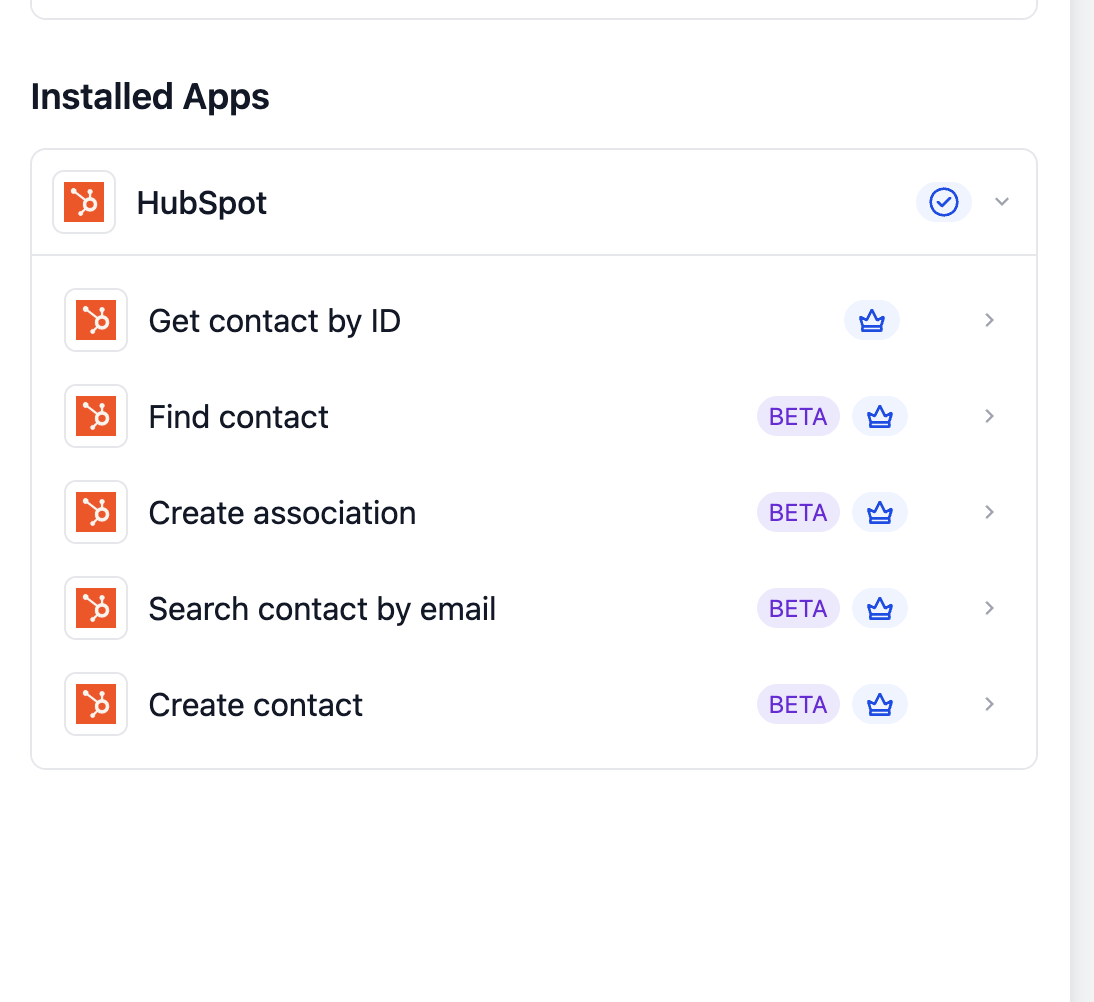
- Actions (Workflows → HubSpot): Two actions - Create Contact and Find Contact
Trigger and actions are premium features
How to Set Up HubSpot
Before any HubSpot trigger or action can run, the integration has to be connected. The connection allows your workflows to securely read from and write to your HubSpot portal.
Connect via the Workflow Builder (recommended)
- Open Automation → Workflows and pick (or create) a workflow.
- Add a HubSpot trigger or action — search for HubSpot in the Apps tab.
- Select any HubSpot trigger or action.
- On the action card, click Connect Now.
- Sign in to HubSpot via OAuth when prompted; authorize the portal and the scopes the integration requires (Contacts: read/write, Associations).
- Click Save to complete.
Connect via Settings (alternative path)
- Go to Settings → Integrations.
- Locate HubSpot and click Connect.
- Authenticate via OAuth and authorize the portal.
List of Triggers
This release ships with a single trigger. Additional triggers (deal stage, ticket events) are on the roadmap.
- New Contact Created - Fires when a new contact is created in HubSpot. Returns the full contact payload standard and custom properties.
List of Actions
- Create Contact - Creates a new contact in HubSpot. Standard fields: Email, First Name, Last Name, Phone. Custom properties supported.
- Find Contact - Looks up a contact by Record ID, email, or filter. Returns matching contact(s) for downstream branching.
Example: Setting Up a Trigger (New Contact Created)
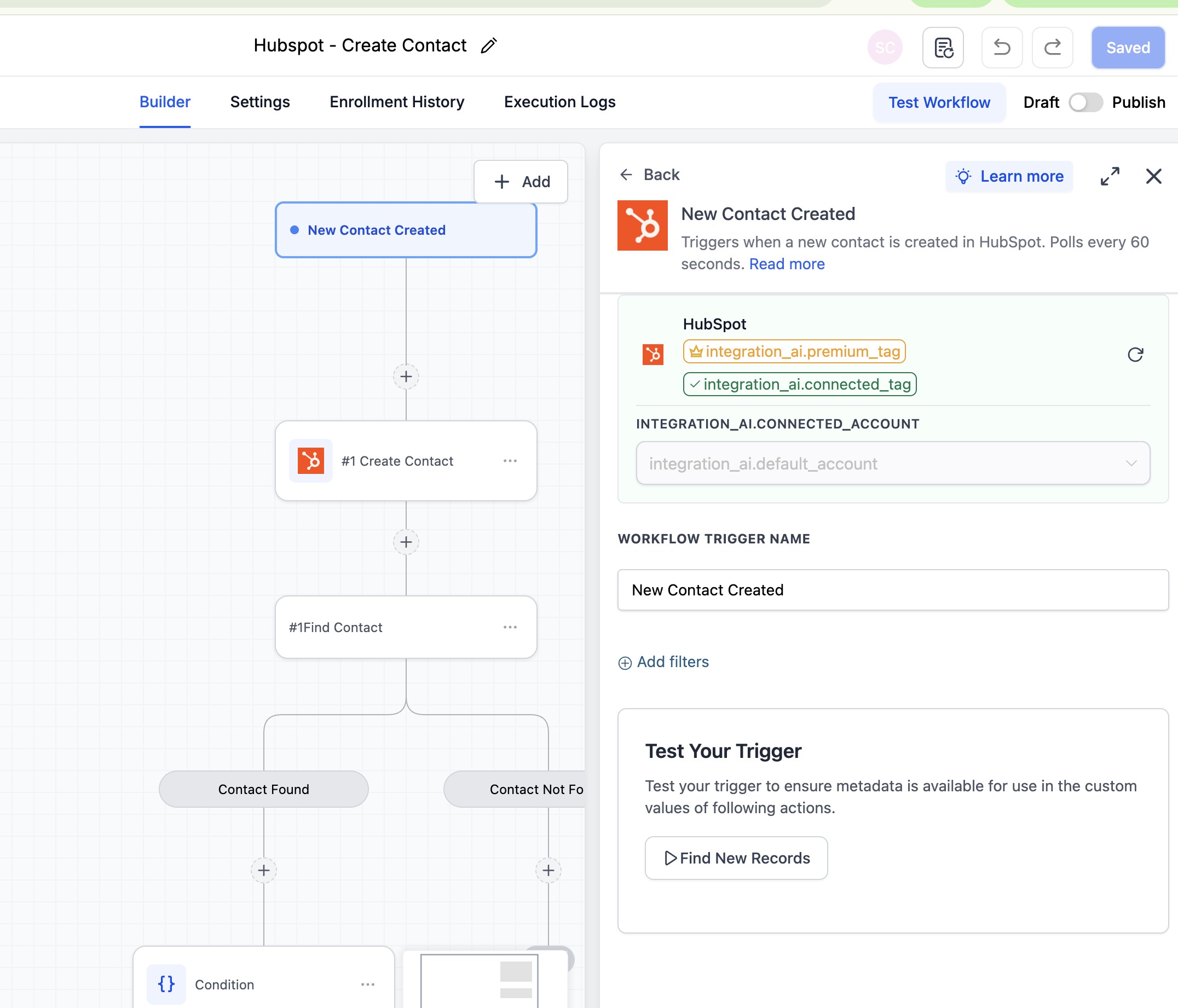
This walkthrough wires up a workflow that fires every time a new contact is created in HubSpot — and uses the contact payload as the source of all downstream actions.
Step 1: Add the trigger
- Open the workflow and click Add Trigger.
- Switch to the Apps tab and search for HubSpot.
- Select New Contact Created from the HubSpot trigger list.
Step 2: Configure the trigger
- Workflow Trigger Name — give it a meaningful label such as ‘New HubSpot Lead’.
- Filters (optional) — constrain by lifecycle stage, source, or any contact property so unrelated contacts don’t enroll.
Step 3: Test the trigger
- Click Find New Records inside the Test Your Trigger panel.
- The system fetches the most recent matching contacts from HubSpot.
- In the Records — Select Mapping Reference dropdown, pick one of the returned records. This locks the payload schema so downstream steps can map cleanly.
- Click Save Trigger to finish.
Example: Setting Up an Action (Create Contact)
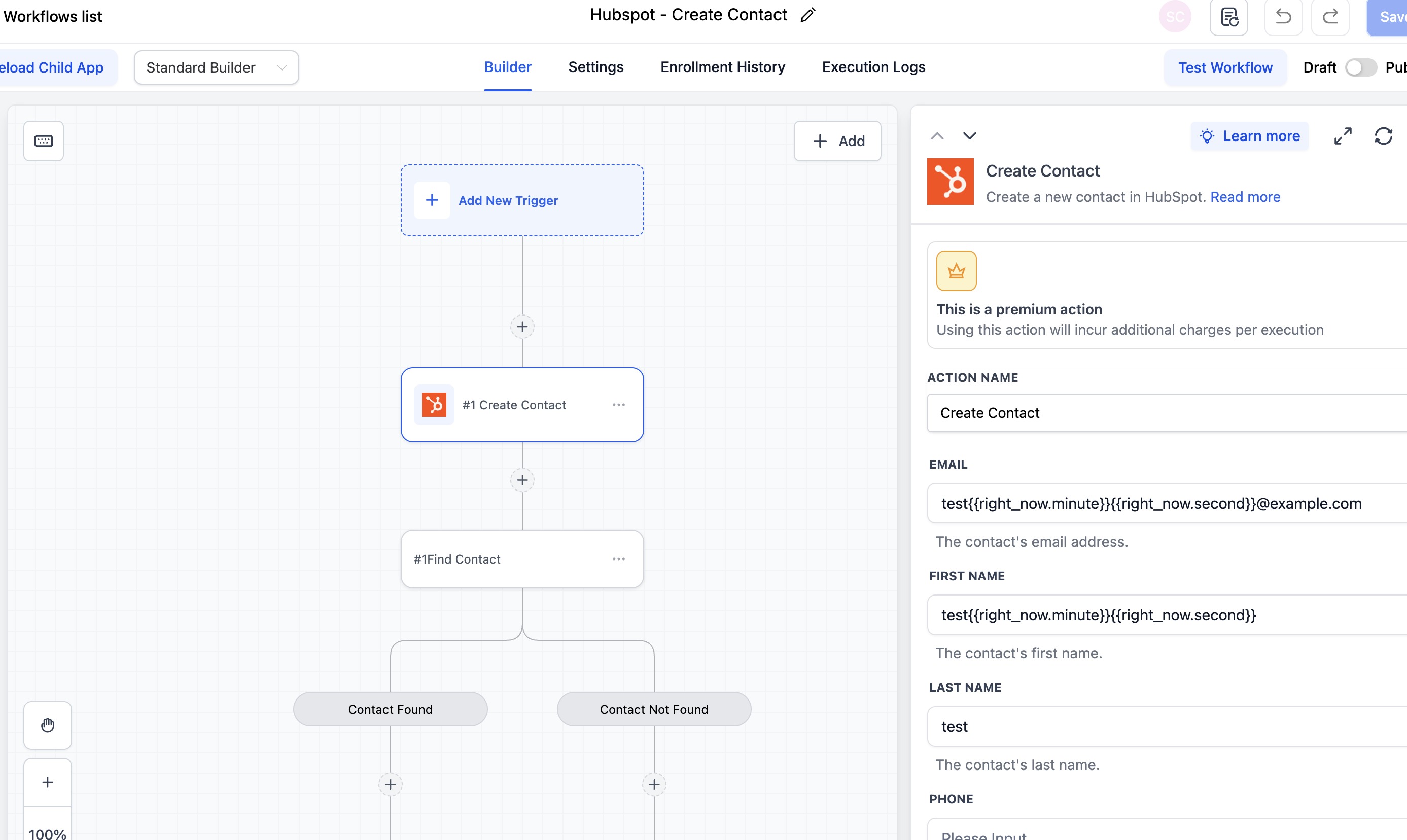
This walkthrough creates a HubSpot contact from a form submission — the most common inbound-flow shape.
Step 1: Add the action
- Inside the workflow, click Add to insert a new step.
- Open the Apps tab and select HubSpot.
- Choose Create Contact from the action list.
Step 2: Connect (first time only)
- If the integration is not yet connected, click Connect Now on the action card.
- Authenticate via HubSpot OAuth and authorize the portal.
Step 3: Configure the action
- Action Name — give the step a meaningful label such as ‘Create HubSpot Contact’.
- Email (required) — use an inline workflow variable, e.g. {{contact.email}}. Email is the canonical dedup key in HubSpot.
- First Name — map from the contact or form payload, e.g. {{contact.first_name}}.
- Last Name — map from the contact or form payload.
- Phone — optional. Map from the contact record or form field.
- Custom properties — any property defined on the HubSpot Contact object can be mapped here. Define it in HubSpot first; unknown property names are silently dropped on submit.
Step 4: Always run Search Contact by Email first
- To prevent duplicates, place a Search Contact by Email step before Create Contact, then branch: if found, use the existing record (or skip); if not, run Create Contact. Email is the canonical dedup key in HubSpot, and this two-step pattern is the single most important hygiene rule for inbound CRM flows.
Step 5: Save and use the output
- Click Save action. The new contact’s ID and full record are exposed as workflow output variables. Chain a Create Association step right after to link the contact to a Company or Deal if account-based context matters.
How to Test the Trigger and Action
Always test before publishing. Testing locks the payload schema and gives downstream steps a real record to map against.
Test the trigger
- Inside the trigger panel, click Find New Records.
- Select a recent contact as the mapping reference.
- Confirm the Trigger Data Response panel shows the fields you plan to use.
Test the action
- Inside the action panel, click Test Action.
- The action runs against the live HubSpot portal using sample values.
- Verify the contact appears in HubSpot at the expected properties.
- If wrong, re-check the field mapping (especially custom property names) and re-test. Once happy, click Save action, then run a full Test Workflow before publishing.
Common Use Cases
Use Case 1: Form-to-Contact with Dedupe
Goal: Capture inbound leads into HubSpot without creating duplicate contacts.
Workflow Setup:
- Trigger: Form Submission
- Action: Search Contact by Email
- Conditional: If found → skip Create; if not found → continue
- Action: Create Contact (with form payload mapped into Email, First Name, etc.)
- Action: (Optional) Create Association to a Company or Deal
Example: A prospect submits a contact form. The workflow checks HubSpot for the email; if a record already exists, it skips the Create step. If not, it creates a new contact, optionally associates them with a known company, and routes them into a welcome sequence.
Use Case 2: CRM → Workflows Two-Way Contact Sync
Goal: Mirror every new HubSpot contact into the platform CRM and keep the records aligned.
Workflow Setup:
- Trigger: New Contact Created (HubSpot)
- Action: Find Contact (platform side, by email)
- Action: Create/Update Contact (platform side) with HubSpot data
Example: Whenever a contact lands in HubSpot — from a HubSpot form, a sales rep’s manual entry, or another integration — it mirrors into the platform CRM with email, name, phone, and lifecycle stage in lockstep.
Frequently Asked Questions
Q: What is HubSpot?
HubSpot is a CRM platform used by sales, marketing, and service teams to track contacts, companies, deals, and tickets. The free CRM tier is broadly available; Marketing and Sales Hub plans add automation, sequences, and more.
Q: Do I need a paid HubSpot plan to use this integration?
No. The integration works on the free HubSpot CRM tier. Certain HubSpot-side features (in-HubSpot workflow automations, certain custom property types) require paid Marketing or Sales Hub plans — those constraints come from HubSpot, not this integration.
Q: Are these actions premium workflow actions?
Yes. All five actions are flagged as premium and consume premium action credits at the standard automation rate.
Q: Is the New Contact Created trigger Instant or polled?
Instant — it is powered by a HubSpot webhook. Workflows enroll within seconds of the contact being created.
Q: How does deduplication work in HubSpot?
Email is the canonical dedup key. Use Search Contact by Email as a guard step before Create Contact to avoid duplicate records. This is the single most important pattern for inbound flows.
Q: Can I create or update custom HubSpot properties via Create Contact?
Yes. Any property defined on the HubSpot Contact object — standard or custom — is mappable. Define the custom property in HubSpot first; unknown property names are silently dropped on submit.
Q: What is the difference between Find Contact, Get Contact by ID, and Search Contact by Email?
Find Contact is the flexible lookup — by ID, email, or other filters. Get Contact by ID is the fastest path when you already have a Record ID. Search Contact by Email is the dedup-focused exact-email lookup. Use Search for inbound forms, Get by ID for refreshing data inside long-running flows, and Find when you need filter flexibility.
Q: Can I use workflow variables in any field?
Yes. All fields support inline variables, including dynamic helpers like {{right_now.minute}} and {{contact.email}}.
Q: What happens if Create Contact fails — for instance, if the email is malformed?
The action surfaces the error to the workflow execution log, and the workflow continues based on its branching. Add a fallback branch if downstream steps depend on the create succeeding.
Q: Will the trigger fire on contacts created by other HubSpot integrations?
Yes. New Contact Created fires for any contact created in HubSpot — by a form, a sales rep, or another integration. Use trigger filters to constrain by source or lifecycle stage if needed.
Was this article helpful?
That’s Great!
Thank you for your feedback
Sorry! We couldn't be helpful
Thank you for your feedback
Feedback sent
We appreciate your effort and will try to fix the article